
Codex still starts from a developer-shaped place. Open a repository, ask it to read files, change code, run tests, inspect a diff, and it feels natural. That is the surface most people notice first.
The interesting part begins when plugins enter the workflow. OpenAI describes plugins as bundles that can include skills, app integrations, and MCP servers. In the Codex app, that can put document artifacts, PDF work, spreadsheets, presentations, browsers, Chrome, Computer Use, Figma, GitHub, Google Drive, SharePoint, Slack, and other work systems near the same agent loop.
That does not make Codex a general office employee. I would be careful with that framing. What it does create is a practical workbench: one place where files, browser checks, team context, and repeatable instructions can be routed into a draft, a comparison, a check, or a handoff.
For non-coding work, that distinction matters. The win is not that Codex can “do office work.” The win is that it can carry context across tools without making a person copy, paste, reformat, and re-check the same material all afternoon.
What I would not skip
I would not roll Codex plugins out by asking, “Which plugins are powerful?” That question leads to a messy answer because almost every plugin looks useful in isolation.
I look for a different signal: where does work currently leak time because the context is split across several places?
The strongest fit is usually a workflow like this:
- A PDF, spreadsheet, document, browser page, or internal thread has the source material.
- Someone needs a decision memo, comparison table, QA result, slide draft, issue summary, or data check.
- The work is repetitive enough that rules can be written down.
- A person still owns the final call.
- A mistake can be caught before it reaches a customer, payment, deletion, or account change.
That is where plugins become useful. They are not just extra buttons. They are context bridges.
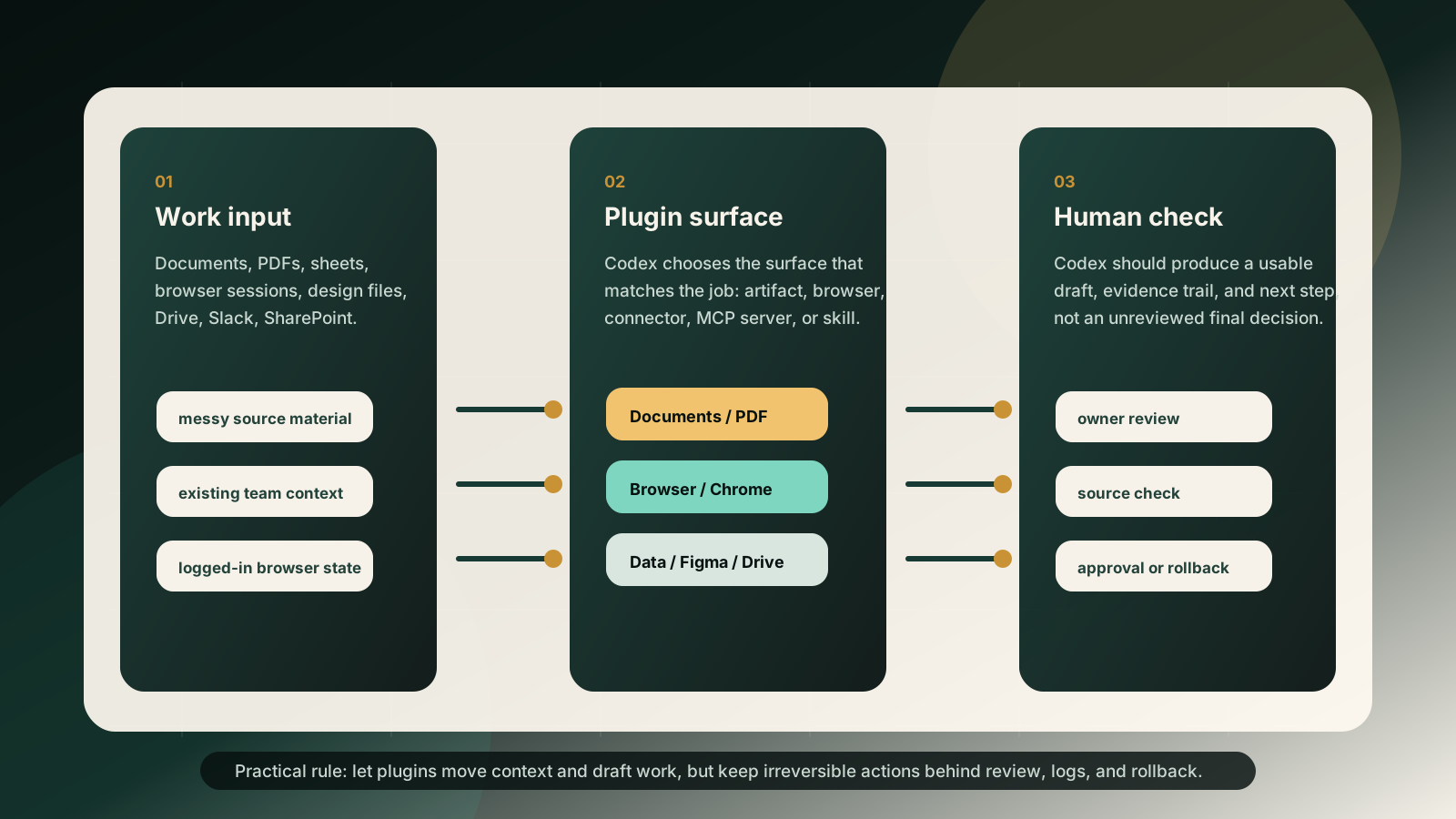
What changes when plugins are available
Without plugins, an AI assistant usually lives inside the text box. You paste a document, paste a screenshot description, paste a CSV sample, paste a product requirement, then ask for an output. It works for isolated tasks, but it breaks down when the work crosses tools.
With plugins, the operating model changes.
| Work surface | Good use | Review point | Do not use as default |
|---|---|---|---|
| Documents | Decision memo, policy draft, meeting note cleanup | Owner checks wording and missing context | Final legal or contractual language |
| Extract claims, compare versions, verify page references | Human checks page numbers and source meaning | Blind compliance approval | |
| Spreadsheets | Clean columns, find anomalies, build formulas, summarize model assumptions | Owner checks formulas and source rows | Unreviewed financial reporting |
| Presentations | Turn a brief into a first deck structure | Presenter checks story and numbers | Board-ready deck without edit |
| Browser | Local preview, public page QA, layout check | Screenshot and issue list | Logged-in account actions |
| Chrome | Logged-in workflow verification with explicit control | Permission and visible browser state | Background account operation |
| Computer Use | Last-mile GUI steps where no API exists | Human watches the app state | Long unattended desktop work |
| Figma | Compare screen states, pull design context, inspect spacing | Designer or product owner reviews intent | Final taste decision |
| Drive, SharePoint, Slack | Find files, summarize threads, prepare follow-up drafts | Source links and owner review | Sensitive message sending |
That table is the whole point. The plugin name matters less than the boundary around it.
Documents and PDF work
Documents and PDF plugins are the first place I would test non-coding Codex work.
The practical example is simple. A product team has a long requirement note, a pricing PDF, a vendor security answer, and a half-written internal memo. The usual manual process is slow because one person reads everything, copies details into a document, adds caveats, then asks someone else to check whether the source actually said that.
With Codex, I would ask for a draft with a fixed structure:
- What changed.
- Which source supports it.
- What is still uncertain.
- What decision is needed.
- What wording should not be used yet.
That is useful because the output is not pretending to be the final answer. It is a reviewable work product.
The failure signal is obvious: if the PDF extraction loses page references, or the memo includes claims without source anchors, stop using that workflow for decision material. Use it only for a reading list or summary until the evidence trail is reliable.
Select it / do not select it: use Documents and PDF when the work is draft-heavy and source-heavy. Do not choose it for final approval language where one missed word can create legal, HR, finance, or customer risk.
Spreadsheets and data work
Spreadsheets look like an easy win, but they are also where I would slow down.
Cleaning columns, standardizing labels, spotting empty rows, checking duplicate IDs, building a first formula, or turning a messy export into a comparison table can save real time. A manager can ask, “Which leads have no owner?” or “Which invoices changed status twice?” and get a useful working view faster than doing it by hand.
The risk is that spreadsheet outputs feel more objective than they are. A wrong formula can look clean. A missing filter can make a chart persuasive and false. A date parsing issue can move revenue into the wrong month.
My operating rule is this: let Codex prepare the sheet, but make it expose the assumptions. I want columns named clearly, formulas visible, changed rows marked, and a short note saying what the agent did not verify.
Good use:
- Turn a raw export into a structured tracker.
- Compare two versions of a CSV.
- Build a first scoring model for prioritization.
- Find rows that need human review.
- Draft a pivot-ready table from inconsistent labels.
Poor use:
- Closing a finance report without row-level inspection.
- Updating a source workbook where no backup exists.
- Replacing the owner’s business rule with a model guess.
If the output reduces editing but does not reduce verification, the workflow is only half working.
Presentations and narrative work
Presentation work is not just “make slides.” The expensive part is usually deciding what belongs on slide one, what can be cut, and which argument the audience should remember.
Codex can help if the inputs are clear: a PRD, a research note, a spreadsheet, a customer issue list, and the audience. I would ask it to produce a first deck outline with slide titles, one claim per slide, evidence needed, and missing-data flags.
That last part matters. A slide draft without missing-data flags is dangerous because it looks finished too early.
For example, a product planning deck might come out as:
- Problem: support tickets are increasing after onboarding.
- Evidence needed: ticket categories, affected customer segment, support hours.
- Decision needed: whether to fix onboarding, add automation, or change routing.
- Risk: the current data may include duplicate tickets.
That is a useful draft. It gives the owner a direction and a checklist. It is not a finished executive deck.
I would select presentation plugins for first structure, not final persuasion. The presenter still needs to own the judgment.
Browser, Chrome, and Computer Use
Browser-related plugins deserve a sharper boundary.
The in-app browser is good for local previews, public pages, layout checks, screenshot evidence, and simple user-flow QA. It is a good match for “open this page, click the filter, check whether the card layout breaks on mobile, then report what happened.”
Chrome is different because it can work with the user’s existing signed-in state through the extension. That is powerful, but it changes the risk. Logged-in pages can contain private data, customer data, billing data, admin controls, and actions that are hard to undo.
Computer Use goes one level further. It can operate desktop apps when the normal browser or API route is not enough. I would reserve it for old admin screens, local tools, or one-off GUI checks where no cleaner interface exists.
My practical boundary:
- Use Browser for public or local QA.
- Use Chrome when signed-in context is necessary and the browser remains visible.
- Use Computer Use only when no structured API, file, or browser route can do the job.
Failure signal: if the agent has to guess what a button means, if the UI changes mid-task, or if the task includes deletion, payment, customer messaging, credential change, or irreversible submission, stop and require a person.
Figma, Drive, Slack, and SharePoint
Figma is useful when the question is grounded: compare a screen to a design, list spacing issues, find component mismatches, or turn a design context into implementation notes. It is less useful when the question is taste-only. “Make it premium” is not enough. “The mobile nav hides the article title; inspect the spacing, tap targets, and language selector” is a real task.
Drive and SharePoint are useful for finding source material and turning scattered documents into a working brief. Slack is useful for thread summaries, action extraction, and follow-up drafts. These are not glamorous workflows, but they are where a lot of office time disappears.
The permission model matters more than the summarization quality. If a plugin can see a folder or channel, the workflow should define what it may quote, what it may link, and what it must not expose in a public document.
I would use these plugins to prepare the work, not to publish it. A good output includes source links, unresolved questions, and the owner for the next step.
Where I would not use plugins
Some tasks are technically possible and still bad automation targets.
I would not use Codex plugins as the default path for:
- Sending customer messages without review.
- Changing billing, account, security, or permission settings.
- Deleting files, tickets, issues, records, or users.
- Submitting forms to regulators, banks, platforms, or vendors.
- Approving contracts, payroll, expenses, refunds, or access requests.
- Updating source-of-truth data without a backup and diff.
- Making a business decision where the evidence is incomplete.
That does not mean Codex has no role. It can prepare the draft, gather the sources, build the checklist, produce the diff, and show the risk. The final action needs a person when the cost of being wrong is high.
Signals that change the plan
The easiest way to misuse plugins is to celebrate a clean demo output and ignore the operational residue.
Here are the failure criteria I would watch:
| Failure signal | What it usually means | What to do next |
|---|---|---|
| The result has no source links | The workflow is summarizing without auditability | Require citations or narrow the input |
| The owner still rereads everything | Automation moved effort, not reduced it | Reduce scope or add structured checks |
| The same exception returns every week | The rule is missing, not the model | Write a skill or update the checklist |
| The agent needs too many permissions | The workflow is too broad | Split read, draft, and execute steps |
| The output is polished but vague | The prompt asks for style, not evidence | Ask for assumptions, missing data, and next decision |
| A browser task changes account state | The risk boundary is wrong | Move to manual approval |
| No rollback exists | The workflow is not production-ready | Add backup, diff, and recovery route |
| People stop trusting the output | The review burden is too high | Retire the workflow or reduce ambition |
These signals are more useful than a generic accuracy score. In real operations, trust depends on traceability and recovery.
Rollout plan
If I were introducing Codex plugins into a work system, I would start with one unglamorous workflow.
For example: vendor comparison intake.
The inputs are a vendor PDF, pricing page, security notes, a spreadsheet of requirements, and a few internal comments. The output is a comparison memo with source links, open risks, missing answers, and a recommendation status: proceed, pause, or reject.
The first rollout should not automate the vendor decision. It should automate the preparation.
Minimum rollout setup:
- Pick one owner.
- Define allowed inputs.
- Define the output template.
- List what Codex must cite.
- List what Codex must not decide.
- Add a review checkbox for source references.
- Keep the original files and generated output together.
- Record every recurring exception.
After two or three cycles, the pattern will be visible. If the same cleanup step repeats, turn it into a skill. If the same source is needed, connect it more directly. If the same approval question appears, add it to the template.
That is how plugins become an operating system instead of a pile of tools.
Before you choose
The question is not “Can Codex do non-coding work?” It can do useful parts of it.
The better question is: which parts of your work are context transfer, draft creation, comparison, checking, and handoff? Those are the areas where plugins can earn their place.
If the work requires judgment, authority, money movement, customer impact, or irreversible changes, keep Codex one step earlier in the workflow. Let it prepare the evidence. Let it show the diff. Let it make the boring parts visible. Then let a person own the decision.
That is not a weak version of automation. In many companies, that is the version that survives.
Questions that change the decision
Are Codex plugins only for developers?
No. Codex starts naturally in software work, but the plugin surface reaches documents, PDFs, spreadsheets, presentations, browsers, design tools, team files, and communication systems. The best non-coding use cases still need clear inputs, outputs, and review rules.
Should Chrome or Computer Use be enabled for every workflow?
No. Browser is enough for many public or local checks. Chrome is useful when signed-in state is required. Computer Use should be reserved for GUI tasks where a cleaner file, browser, connector, or API path is not available.
What is the first workflow worth trying?
Choose a workflow where the final decision stays with a person: vendor comparison, policy review, PDF-to-memo, spreadsheet cleanup, design QA, or support-thread triage. Avoid payments, deletions, account changes, and customer messages at the start.
How do plugins connect with skills?
Plugins provide tool surfaces and integrations. Skills package repeatable instructions, checks, and workflow knowledge. When the same task repeats, the useful pattern is often plugin for access, skill for method, and human review for ownership.
References and reporting
Public pages used for reported facts, official documentation, policy background, product details, and claims that may change.
- Codex pluginsOpenAIUsed for: plugin bundle structure; skills apps and MCP server relationshipChecked: 2026-08-25
- Codex app featuresOpenAIUsed for: non-code artifacts; automation and browser capabilitiesChecked: 2026-08-25
- Codex Chrome extensionOpenAIUsed for: logged-in Chrome state; browser extension boundariesChecked: 2026-08-25
- Computer Use in CodexOpenAIUsed for: desktop app control; Windows foreground constraint; safety boundaryChecked: 2026-08-25
- In-app browser in CodexOpenAIUsed for: local preview; unauthenticated web inspection; browser QAChecked: 2026-08-25
- Agent SkillsOpenAIUsed for: reusable task instructions; progressive disclosureChecked: 2026-08-25
- Model Context Protocol in CodexOpenAIUsed for: external context and tool connectionsChecked: 2026-08-25
- GPT web generated imageOpenAIUsed for: featured image generationChecked: 2026-08-25