Most spreadsheet work does not fail because someone picked the wrong AI model. It fails because the team asks AI to handle the whole workbook as if every column, formula, and exception had the same risk.
That is not how Excel work behaves in the real world. A typo in a customer segment is annoying. A wrong revenue total can make a manager make the wrong call. A formula that silently skips three rows can travel through a board deck before anyone notices. I treat AI in spreadsheets as a junior analyst with speed, not as a system of record.
The useful question is not “Can AI do Excel?” It can do pieces of the job. The useful question is where it should sit without creating a bigger review burden than the one it removes.
Start with the sheet, not the model
Before opening ChatGPT, Copilot, or Gemini, I look at the spreadsheet itself. The first pass is not technical. It is almost boring.
| Question I ask first | Why it matters |
|---|---|
| Is this source data or a copy? | AI should not rewrite the only trusted version of a file |
| Is there money, payroll, customer data, or legal exposure inside? | Review rules must be stricter when the damage is higher |
| Are the column names stable? | Unstable headers make prompts and formulas brittle |
| Are there hidden filters, merged cells, or manual color codes? | AI often misses the human meaning behind these details |
| Does the file feed another system? | A small formatting change can break an import |
| Who signs off on the final number? | Automation is unsafe when no owner exists |
If I cannot answer those questions, I do not automate yet. I make a working copy, mark the final owner, and write down what output I actually need. That sounds slow, but it is cheaper than explaining later why the AI-generated summary was based on the wrong sheet.
What AI can safely handle first
There are spreadsheet tasks where AI earns its place quickly. They are repetitive, visible, and easy to check.
| Spreadsheet task | Good AI use |
|---|---|
| Messy column names | Rename columns into a consistent scheme |
| Duplicate customer rows | Suggest duplicate rules before merging anything |
| Long notes in a cell | Extract likely category, urgency, or owner |
| Month-end comments | Draft a plain-language explanation from numbers |
| Formula memory | Suggest a formula and explain why it works |
| Pivot idea generation | Suggest cuts by month, product, region, or channel |
| Report outline | Turn a table into a short management memo |
| Data dictionary | Explain what each column appears to mean |
I usually begin with one of these. The output is helpful, but the risk is contained. If the generated category looks wrong, I can correct it. If the formula suggestion is close but not perfect, I can test it on three rows before dragging it down a thousand lines.
Where I would not let AI run alone
Some spreadsheet work looks similar on screen but carries a very different risk.
I would not let AI quietly overwrite revenue recognition logic. I would not let it decide commission payments. I would not let it reconcile bank statements without a human review trail. I would not let it change a shared workbook used by sales, finance, and operations at the same time.
The failure signal is simple: if a wrong answer would require an apology, a refund, a payroll correction, or a formal explanation, AI can assist but cannot be the final actor.
| Do not automate blindly | Safer shape |
|---|---|
| Final revenue totals | AI drafts variance notes; owner checks totals |
| Payroll or commission sheets | AI finds anomalies; human approves payment logic |
| Customer imports | AI flags missing fields; import remains rule-based |
| Financial forecasts | AI writes scenario notes; model assumptions stay visible |
| Compliance reporting | AI creates a checklist; evidence stays attached |
The point is not to be afraid of the tools. The point is to keep the high-risk part inside a reviewable workflow.
Where ChatGPT fits
I use ChatGPT when the spreadsheet is only part of the job. A common case is a CSV export from CRM, billing, analytics, or support. The file is messy, and the output is not another spreadsheet. The output is an explanation, a decision memo, a set of cleanup rules, or a prompt that will later become an automation step.
ChatGPT is useful when I need to say:
- “Here is a CSV. Tell me which columns are probably unreliable.”
- “Group these customer notes into practical categories.”
- “Explain the month-over-month change without sounding like a finance textbook.”
- “Turn this table into a manager-ready status update.”
- “Give me a formula, but also explain how to test it on five rows.”
The OpenAI Help Center describes ChatGPT data analysis as a way to work with uploaded files and inspect data interactively. In practice, that is where I find it strongest: not as a replacement for Excel, but as a thinking layer around a file.
My caution is privacy and source control. I do not upload sensitive customer lists, payroll data, or internal financials unless the workspace policy clearly allows it. I also avoid asking it to “fix the file” in one pass. I ask for proposed rules first.
Where Copilot in Excel fits
Copilot is the cleanest choice when the spreadsheet should remain in Excel. That matters more than people admit. Many Excel tasks are not about clever analysis. They are about staying close to the workbook, the formulas, the chart, the filter, and the people already using the file.
Microsoft positions Copilot in Excel around asking questions about data, generating formula column suggestions, highlighting, filtering, sorting, and visualizing data. That is the correct mental model. Copilot is not something I would use to write a long strategy memo. I would use it when I am already in the file and want to move faster without leaving the sheet.
Good Copilot jobs:
- find outliers in a table,
- suggest a chart for a monthly trend,
- create a formula column,
- highlight rows that match a condition,
- produce a first summary of a table,
- make a PivotTable-style cut easier to start.
Where I slow down: any formula that becomes permanent. Formula suggestions are still suggestions. I test the first rows, check blanks, check zero values, and check the row where the business exception usually lives.
Where Gemini in Sheets fits
Gemini makes most sense when the work is already in Google Sheets and connected to the broader Google Workspace habit. If the source material sits in Drive, the discussion happens in Gmail, and the report draft is headed toward Docs or Slides, moving the sheet into a separate tool can create friction.
Google’s support pages describe Gemini in Sheets as a way to collaborate on tables, formulas, analysis, charts, and AI-assisted filling. That lines up with the jobs I would give it:
- turn a rough tracker into a usable table,
- draft a formula in a column,
- categorize rows from short text,
- propose a chart for a visible trend,
- prepare a first-pass summary for a meeting note.
I would not choose Gemini only because it is available. I would choose it when the operating context is already Google-native. The model choice should follow the work surface.
Example: turning a sales CSV into a monthly report
Here is the kind of workflow I trust more than a single big prompt.
| Step | Tool | Human check |
|---|---|---|
| Export the CRM report as a copy | CRM or Excel | Confirm date range and filters |
| Normalize column names | ChatGPT or Copilot | Check that revenue, stage, and owner fields stayed intact |
| Mark missing values | Excel, Sheets, or Gemini | Decide whether blanks mean unknown, zero, or not applicable |
| Create basic cuts | Copilot or Gemini | Compare totals against the raw export |
| Draft the narrative | ChatGPT | Remove claims that are not visible in the table |
| Build final chart | Excel or Sheets | Check axis, period, and excluded rows |
| Send the memo | Human owner | Own the final recommendation |
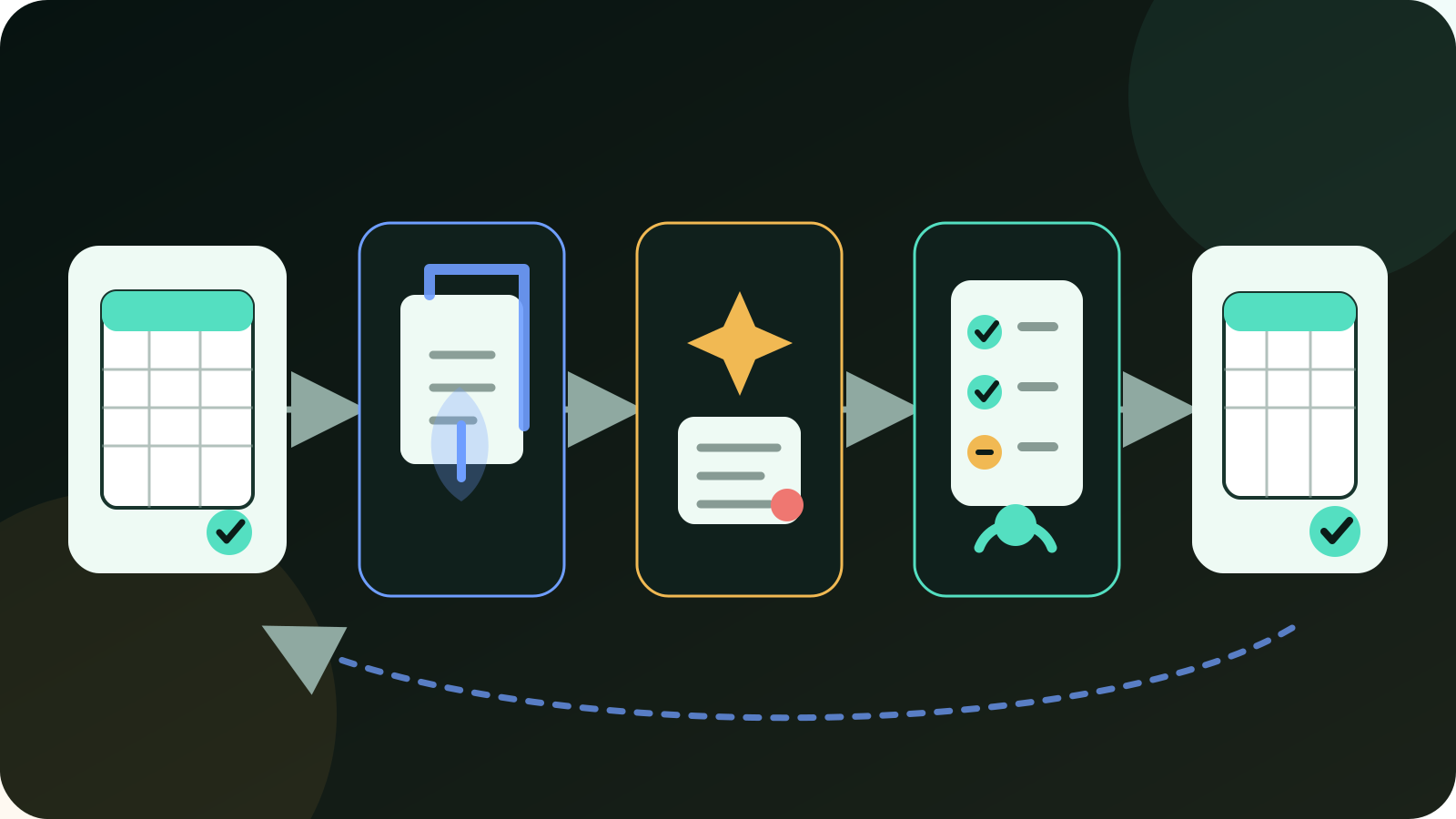
This is slower than a magic demo. It is also closer to how work survives. The AI is used several times, but the source of truth remains visible.
Example: cleaning a customer list
Customer lists are where I see people make the same mistake. They ask AI to deduplicate, categorize, and prepare an import all at once. Then someone discovers that “Acme Ltd” and “Acme Support Account” were not the same customer after all.
A safer flow is:
- Create a copy of the export.
- Ask AI to propose duplicate rules, not merge rows.
- Add a
possible_duplicate_reasoncolumn. - Review the top 30 risky cases manually.
- Lock the matching rule before applying it to the full file.
- Keep the original row ID.
- Export only after a person accepts the rule.
That row ID is not a detail. It is the escape hatch. If the import goes wrong, you need a path back to the original record.
Prompts I actually use
Long prompts are not always better. For spreadsheets, I prefer prompts that force the AI to name risk and review steps.
| Situation | Prompt shape |
|---|---|
| Messy CSV | “Read the headers and first rows. Tell me which columns are risky before suggesting cleanup.” |
| Formula help | “Suggest the formula, then give me three test rows where it could fail.” |
| Monthly comment | “Write a plain explanation of the biggest change. Do not mention a cause unless the table supports it.” |
| Category tagging | “Create categories, but include an ‘unclear’ bucket and explain when to use it.” |
| Chart choice | “Recommend one chart and one chart to avoid for this table.” |
| Report draft | “Draft the memo in five bullets. Mark any sentence that needs human confirmation.” |
The important part is not the wording. It is the habit. Ask the model to show uncertainty before it shows confidence.
Review checklist before the file leaves your desk
I use this checklist before AI-assisted spreadsheet work goes to someone else.
| Check | Pass condition |
|---|---|
| Raw file preserved | The original export still exists |
| Date range confirmed | The report period is written in the file or memo |
| Totals reconciled | AI-assisted totals match the raw table or explain the difference |
| Blanks handled | Empty cells have a defined meaning |
| Formula tested | The formula was tested on normal, blank, zero, and exception rows |
| Manual changes visible | Hand edits are marked or traceable |
| Sensitive data policy checked | The tool used is allowed for this data |
| Owner named | One person signs off on the final output |
If two or more checks fail, I do not send the file. I fix the workflow first.
Where I land
If I had to pick a default pattern, it would be this: Copilot for work that stays inside Excel, Gemini for Google Sheets work that stays in Workspace, and ChatGPT for analysis that needs to become a written explanation or a reusable workflow instruction.
But I would not make any of them the permanent default for every spreadsheet. The source file, the review burden, and the cost of a wrong number matter more than tool preference.
The best spreadsheet AI workflow is usually boring. Preserve the raw file. Ask for rules before changes. Keep row IDs. Test formulas on edge rows. Let AI draft explanations, but make a person own the final number.
That is less exciting than asking a model to “analyze this spreadsheet.” It is also the difference between a neat demo and a workflow you can safely repeat next month.
Signals to stop
I would stop using the AI flow, or narrow it sharply, when any of these show up:
- people still recheck every number from scratch,
- categories change every time the same prompt runs,
- a formula works only on the clean sample rows,
- the final report contains explanations not supported by the table,
- nobody knows whether the AI changed a source value,
- the team cannot reproduce last month’s result.
That last point is important. A spreadsheet process that cannot be repeated is not really a process. It is a lucky run.
Questions worth settling first
Should I use ChatGPT or Copilot for Excel?
Use Copilot first when the work should stay inside Excel. Use ChatGPT when the spreadsheet needs a written explanation, cleanup logic, or a reusable workflow outside the workbook.
Is Gemini useful for spreadsheet work?
Yes, especially when the sheet already lives in Google Workspace. It is less about replacing Excel and more about reducing friction inside Sheets, Docs, Drive, and meeting notes.
Can AI write Excel formulas safely?
It can suggest formulas, but the formula still needs testing. I test normal rows, blank rows, zero-value rows, and the ugly exception row that usually breaks the neat answer.
What is the biggest risk?
The biggest risk is quiet confidence. A wrong explanation attached to a correct-looking table is harder to catch than a visible error message.
What should I try first?
Start with a copied CSV, a low-risk report, and one narrow job: clean headers, draft a variance note, or suggest a formula. Do not begin with the file that drives payroll, billing, or board reporting.
References and reporting
Public pages used for reported facts, official documentation, policy background, product details, and claims that may change.
- Data analysis with ChatGPTOpenAI Help CenterUsed for: uploaded spreadsheet analysis; structured data preparation guidanceChecked: 2026-08-25
- Extracting Insights with ChatGPT Data AnalysisOpenAI Help CenterUsed for: interactive table behavior; analysis workflow framingChecked: 2026-08-25
- Get started with Copilot in ExcelMicrosoft SupportUsed for: Copilot pane behavior; Excel data insight and edit workflowChecked: 2026-08-25
- Visualize your data with Copilot in ExcelMicrosoft SupportUsed for: charts; PivotTables; highlighting and filteringChecked: 2026-08-25
- Collaborate with Gemini in Google SheetsGoogle Docs Editors HelpUsed for: Gemini in Sheets capabilities; tables; formulas; analysis and chartsChecked: 2026-08-25
- Use the AI function in Google SheetsGoogle Docs Editors HelpUsed for: AI columns; prompt-based filling; spreadsheet completionChecked: 2026-08-25
- Pexels photo 8297058Pexels / Mikhail NilovUsed for: featured imageChecked: 2026-08-25